
How to esign documents in your Portal
How to Sign Your Forms in Drake Portals Using Drake E-Sign Online
Video Walkthrough: How to Use Remote Signatures
Having trouble viewing the embedded player? Watch How to Use Remote Signatures directly in a new tab, or review the Drake Portals Taxpayer E-Sign Guide.
-
Check Your Email
- Once your preparer uploads a document for you to electronically sign, you will receive an email notification that there are documents ready to review and sign.
- If you don’t have a Drake Portals account yet, use the link in the email to create one.
-
Log in to Drake Portals
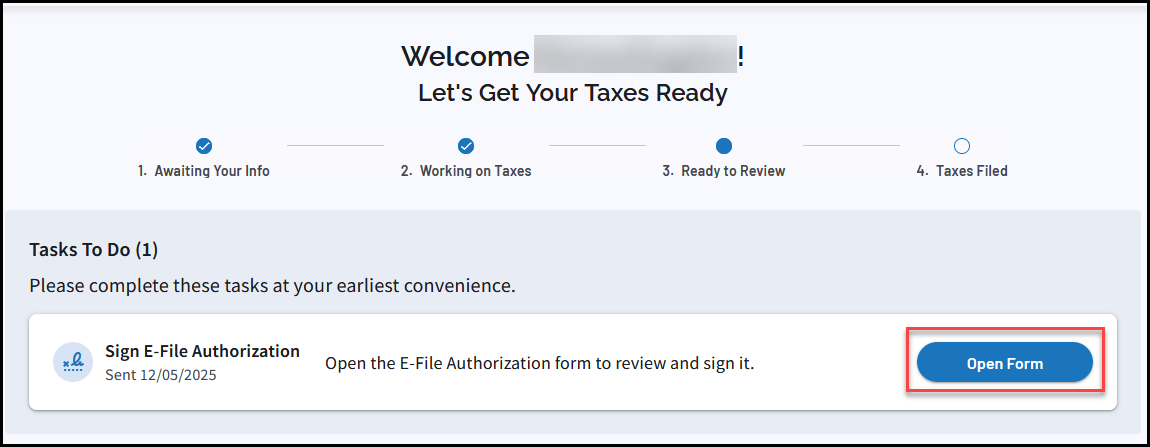
- Once you create or log in to your Drake Portals account, you will see a new task for the signature document on the Home page, as well as a notification dot next to the Files menu on the left showing that there are forms waiting to be signed.
-
Open the Document to Sign
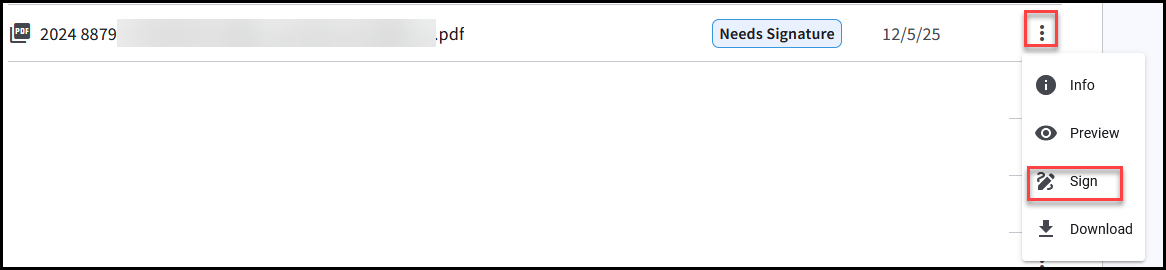
- Click the signature task on your Home page, or click the Files menu on the left.
- In the Files window, click the three-dot menu (•••) beside the item labeled Needs Signature and select Sign.
-
Select the Signer (Joint Returns)
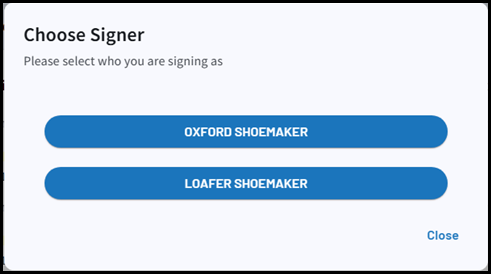
- If prompted, select which taxpayer is signing on the Choose Signer screen.
-
Complete Knowledge-Based Authentication (KBA)
- A notification window will display informing you of the Knowledge-Based Authentication (KBA) questions that must be answered to proceed (if applicable).
- Answer 3 out of 4 personal-history questions correctly to verify your identity and proceed.
⚠ Important: Do Not Rush Your KBA Security Questions
You must answer at least 3 out of 4 questions correctly. If you fail the KBA verification, IRS security rules will lock you out of Drake E-Sign Online for the remainder of the calendar year.
Eligibility Note: Taxpayers must be at least 18 years old to sign electronically. For joint returns, the verification system must be able to match both the taxpayer and spouse to the address on file to generate KBA questions for both signers.
💬 Unable to Pass KBA? Message Us in Client Portal Chat
If a signer cannot pass the KBA verification (or if the system cannot generate questions for you), please message your preparer using the Client Portal Chat. Our office will provide an alternative method so you can still sign your documents electronically.
-
Apply Your eSignature
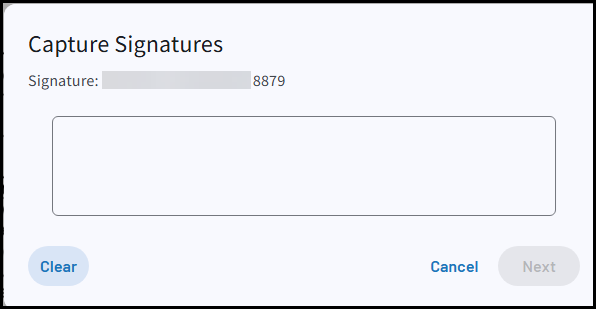
- Once the document opens, click the signature field to bring up the Capture Signatures box.
- Apply your eSignature using a mouse, stylus, or your finger in the Capture Signatures box, and click Next. (Available input options vary depending on whether you are using a computer, tablet, or mobile device.)
-
Spouse Signatures (if applicable)
- If filing a joint return, your spouse must repeat the same signer selection, KBA verification, and signature steps for their required fields.
-
Submit Signatures
- Repeat the steps to apply signatures to all remaining fields, then click Submit Signatures.
- After you have completed all signature fields and clicked Submit, your preparer will be notified automatically so they can proceed with your return. You can review or download your signed documents anytime from the Files tab.